Add audio description file
Lien original : https://www.3playmedia.com/blog/how-to-add-audio-description-to-youtube-videos/
Once you have your audio description file, you can add it to your video using these steps:
Step 1: Sign in to YouTube Studio on your computer.
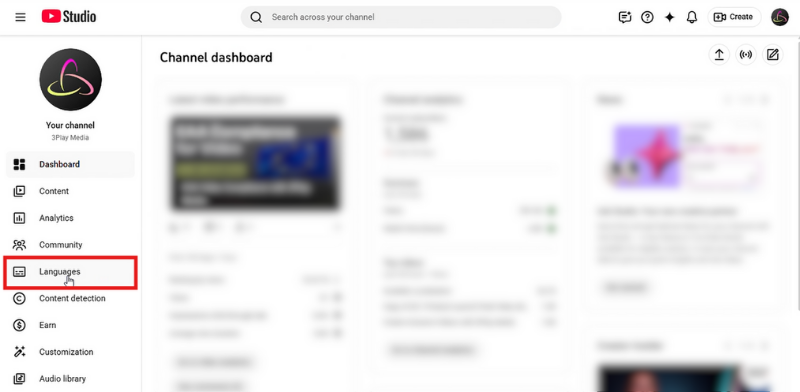
Step 2: From the left menu, select Languages.
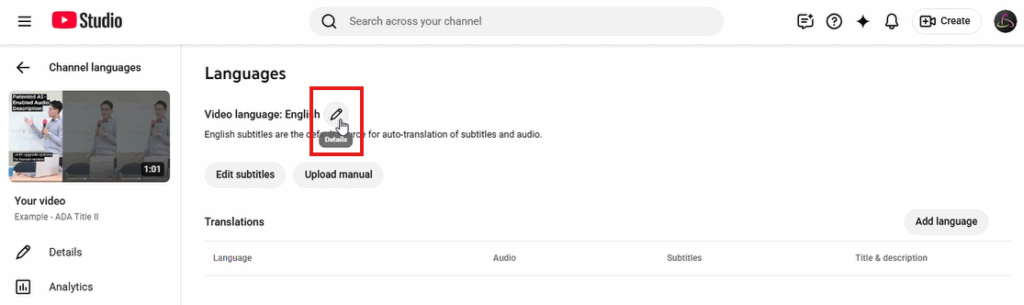
Step 3: Click the video that you’d like to edit.
Step 4: Click the pencil icon (i.e., Details) under Languages.
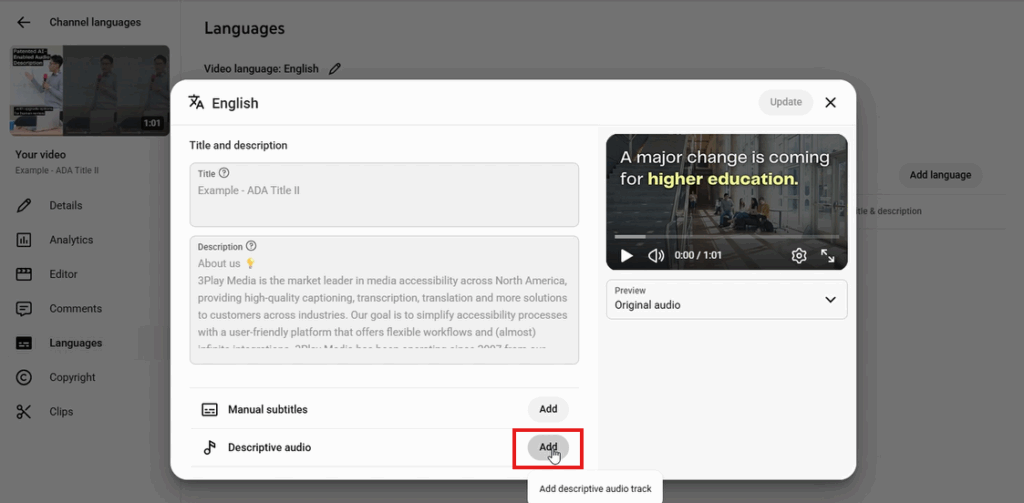
Step 5: At the bottom, to the right of Descriptive Audio, click Add.
Step 6: Select the audio file containing the descriptive audio track. Files must be in a supported audio-only file format and roughly the same length as your video.
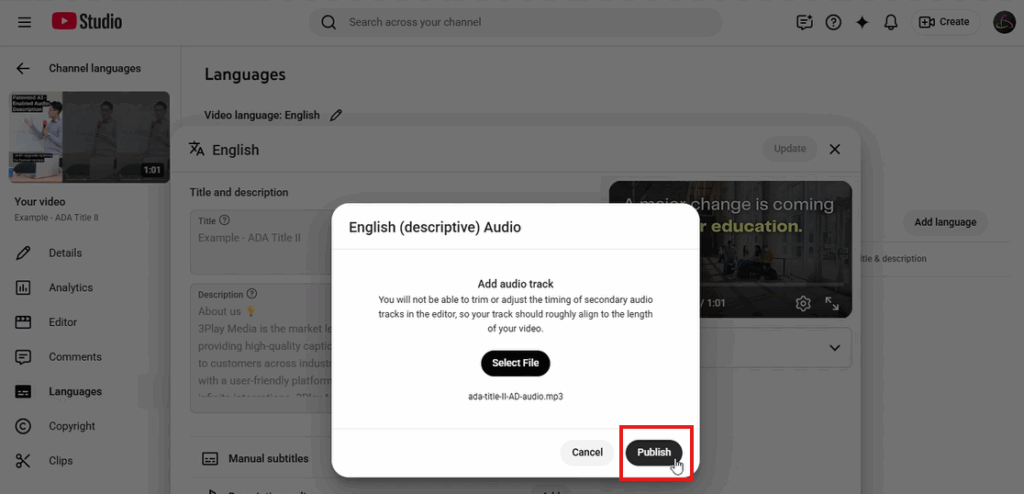
Step 7: Once the file is selected, click Publish.
Step 8: Click Update.
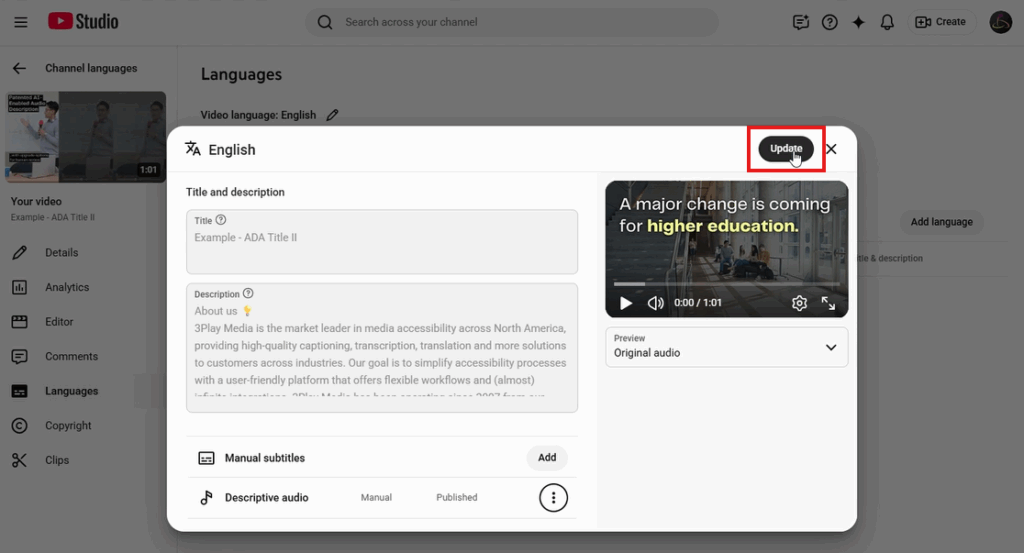
Step 9: Wait for descriptive audio to process. Then your audio description will be ready to toggle on and off!
How to Turn On Audio Description On YouTube
When viewing a video, turning on YouTube audio description can feel a little unintuitive, but this is how it’s done:
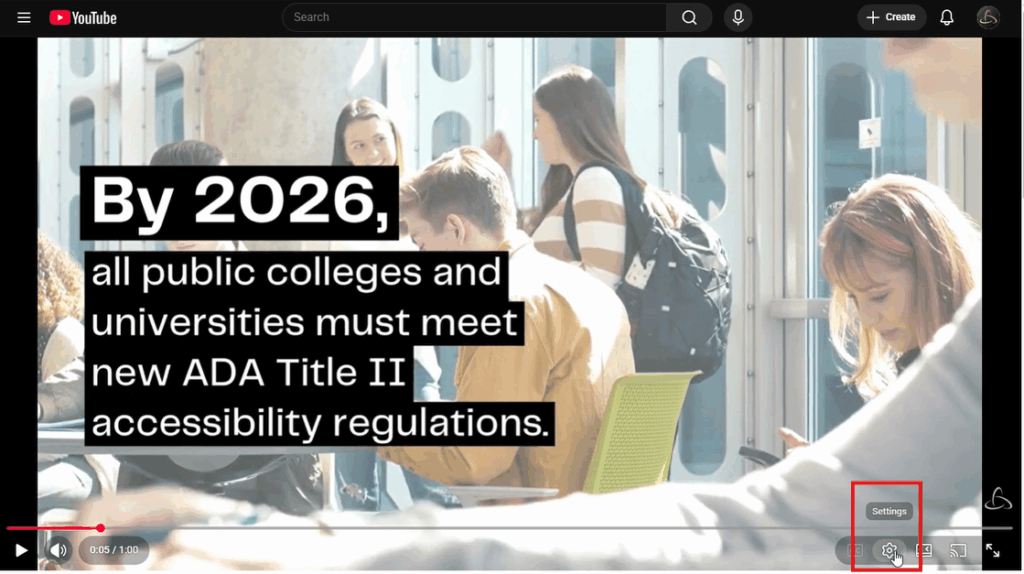
Step 1: Click the gear icon (i.e., Settings).
Step 2: Click Audio track to view language and descriptive audio options.
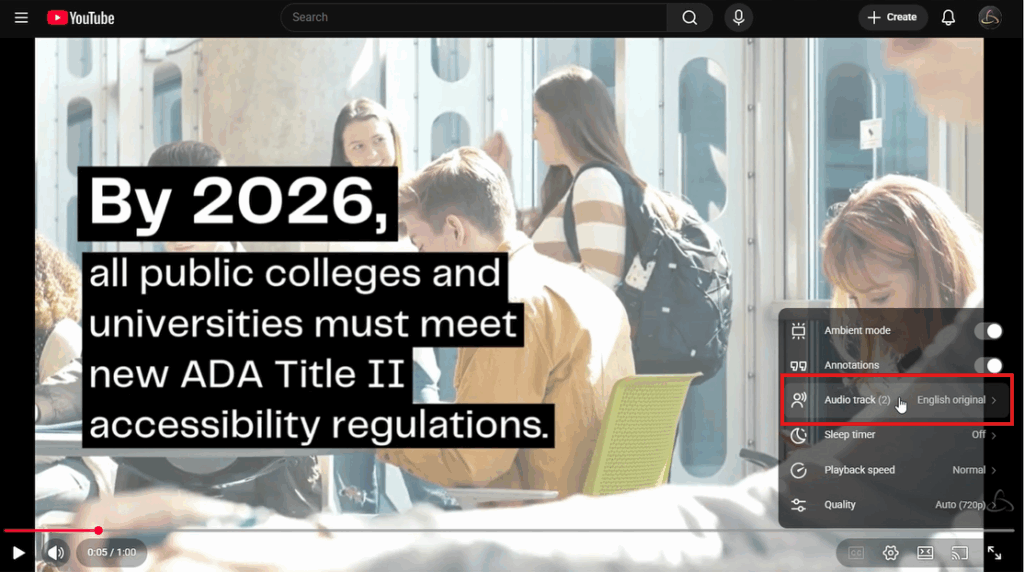
Step 3: Click English descriptive (or whichever language you would like descriptive audio for).
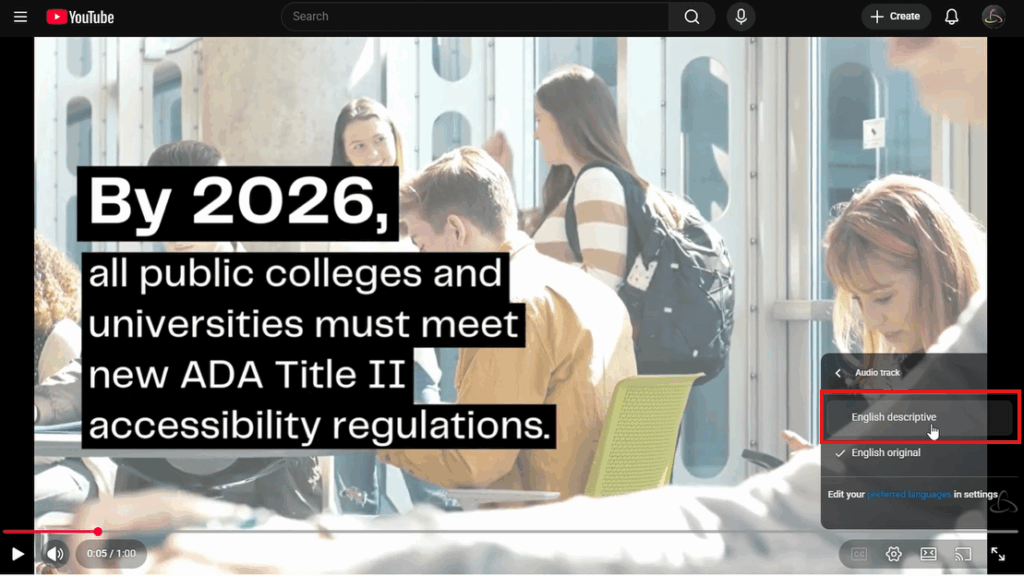
And with that, you can now watch the video while it plays the track with audio description!
How to Create Audio Description for YouTube Videos
The two most common ways to create audio descriptions for YouTube videos are to create descriptions manually or use an audio description vendor.
Going the DIY route will be less expensive, but it is a far more labor- and time-intensive process. On the flip side, you’re guaranteed high-quality, accurate descriptions when you go through a professional audio description vendor like 3Play Media.
Our professional describers watch your video and utilize technology and human editing to create clear, accurate descriptions that follow the DCMP guidelines. The descriptions, using synthesized speech or professional voice actors, are placed using the existing timecodes from your caption file so that they don’t disrupt the viewer from the original audio track.
Outsourcing to 3Play Media
Begin by logging into/creating your 3Play Media account.
To order audio description, you must first order transcription.
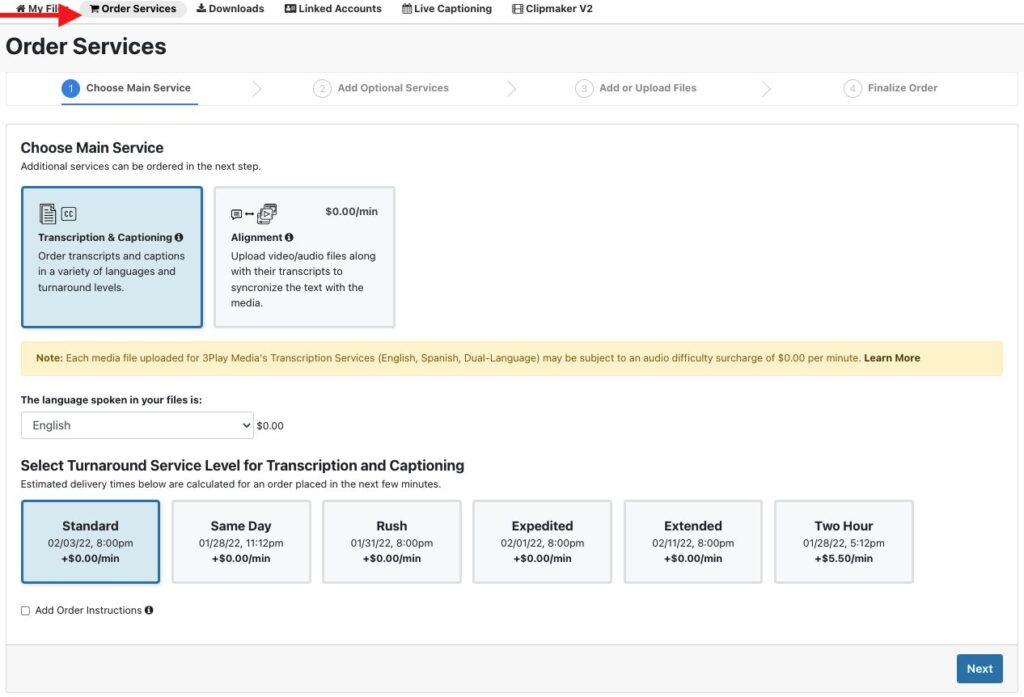
Select Order Services at the top of the screen, and select Transcription & Captioning as your main service. Choose your preferred turnaround time, and click next to continue.
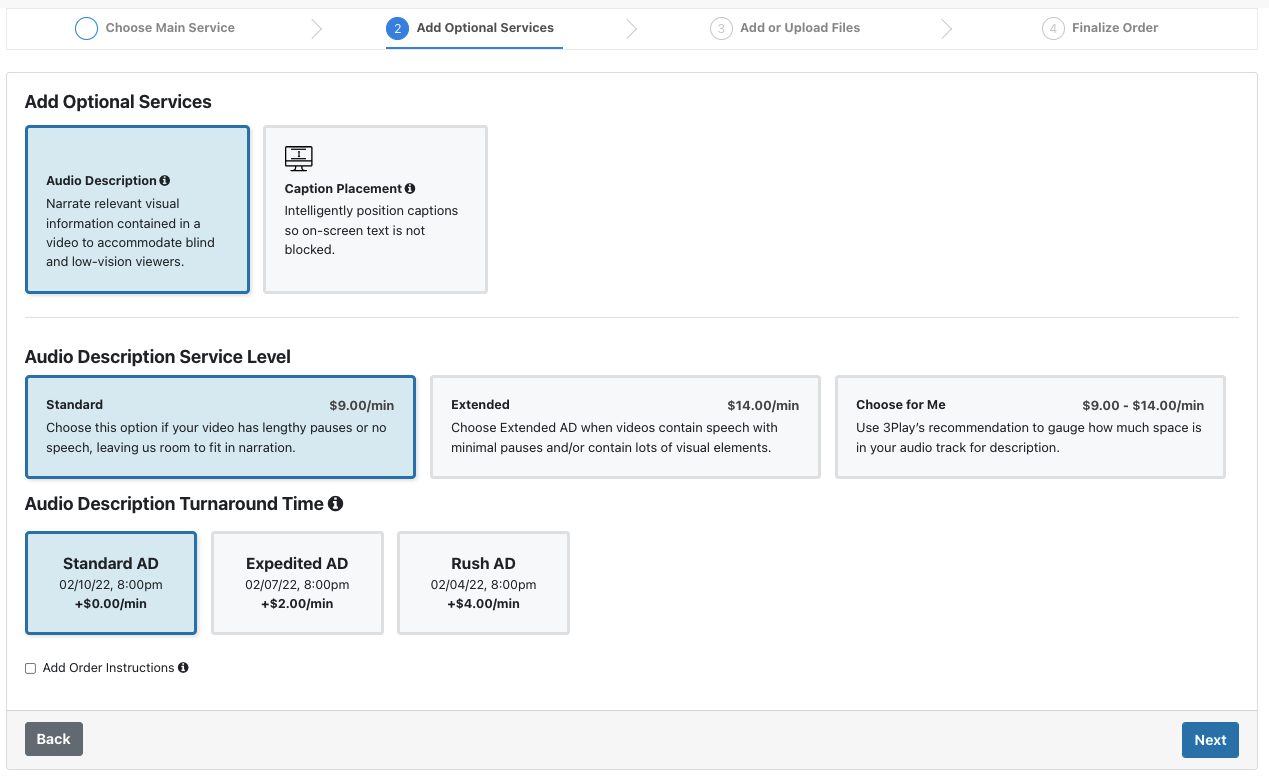
Select Audio Description as an additional service. Choose your preferred service level and turnaround time, then click next.
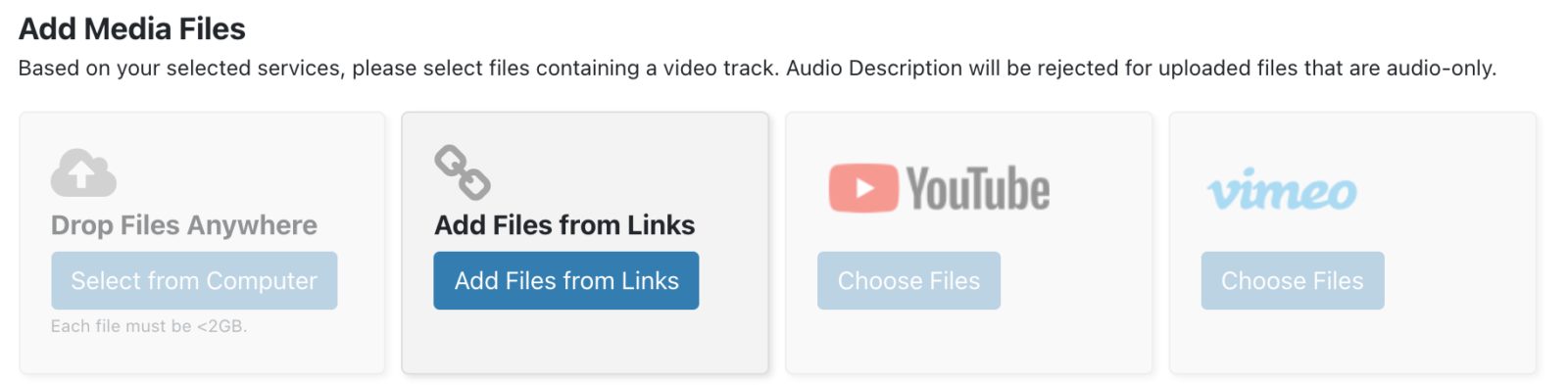
Select the method you are going to use to upload your video. From Links is a great option for YouTube videos, especially those you don’t own. Copy and paste the video URL, click Add Files, then hit next.
Review and submit.
- If you already have a transcribed file from a YouTube video in your account, navigate to the file for which you want audio description, click on the file name, choose Order More when the menu appears on the right of the screen, and choose Audio Description. Follow the prompts to place your order.
- If you already have an audio description file from a YouTube video in your account, continue to Step 2.